Appearance
Deals and opportunities
CRM Connect links your CRM to AWS Partner Central. It has three tabs and opens on the first:
- Deals (CRM): deals from your connected CRM.
- Opportunities (ACE): your Partner Central opportunities.
- Leads (ACE): your Partner Central leads. See Leads.
Connect a CRM
A tenant admin connects HubSpot, Zoho or Salesforce in Accounts & Setup → Integrations → CRM connections. Other users see "Only a tenant admin can connect a CRM".
- Choose + Add CRM.
- Pick the Provider, give the connection a Label and pick the Account it syncs.
- Choose Connect, sign in to the CRM and approve access.
Salesforce needs a few more steps. See Connect Salesforce.
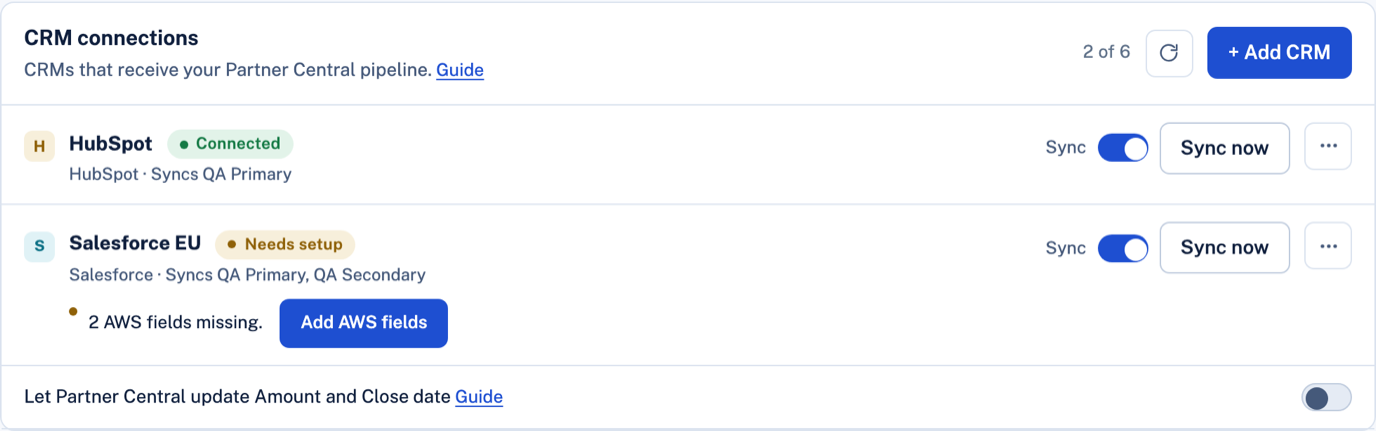
CRM connections
Each connected CRM has one row in CRM connections.
- Status: Connected, Needs setup, Blocked, Not connected, Expired or Pending.
- Sync turns sync on or off for that CRM. Sync keeps linked deals up to date. It never creates deals.
- Main action: Sync now, Retry, Reconnect or Connect, depending on the status.
- Setup items: what is left to do, each with one action. For example Add AWS fields on Salesforce, Set values for fields your CRM requires or Fix for a stage mapping.
- ⋯ opens the other actions: Pipeline settings (HubSpot), Stage mapping, Download field pack (Salesforce), Reconnect, Rename, Disconnect and Remove.
Sync now syncs the changes since the last run. After you use it, the button shows Available in N min until you can use it again.
Disconnect stops sync and keeps the deals. After Reconnect, link the accounts again. Remove deletes the connection from CloudSmart.
Account sync, below the connections, sets which CRMs each AWS account syncs with, up to 3 per account. Choose the cell under Syncs to, tick the CRMs and save.
Blocked sync
When a CRM rejects the same update three times in a row, sync for that CRM is blocked. The row shows Blocked and the CRM's message.
- Fix the cause in your CRM, for example a validation rule, a required field or an automation.
- Choose Retry on the row.
The app also retries once a day. Other CRMs keep syncing.
HubSpot pipeline
Deals CloudSmart creates in HubSpot go to the Deal pipeline you choose in ⋯ → Pipeline settings, or to HubSpot's default pipeline.
- With one pipeline in HubSpot, it is used.
- If the chosen pipeline is deleted in HubSpot, new deals go to the default pipeline and the row shows Deal pipeline not found with Choose pipeline.
Stage mapping
Your CRM owns the deal's stage. Sync does not change it unless you set a stage mapping. The mapping works one way, from ACE to your CRM.
A tenant admin opens ⋯ → Stage mapping on the connection.
- For each ACE stage (Prospect, Qualified, Technical Validation, Business Validation, Committed, Launched, Closed Lost), pick one of your CRM's stages, or leave Don't change.
- Use suggested fills the empty rows with the standard match. Check them before you save.
- Choose Save.
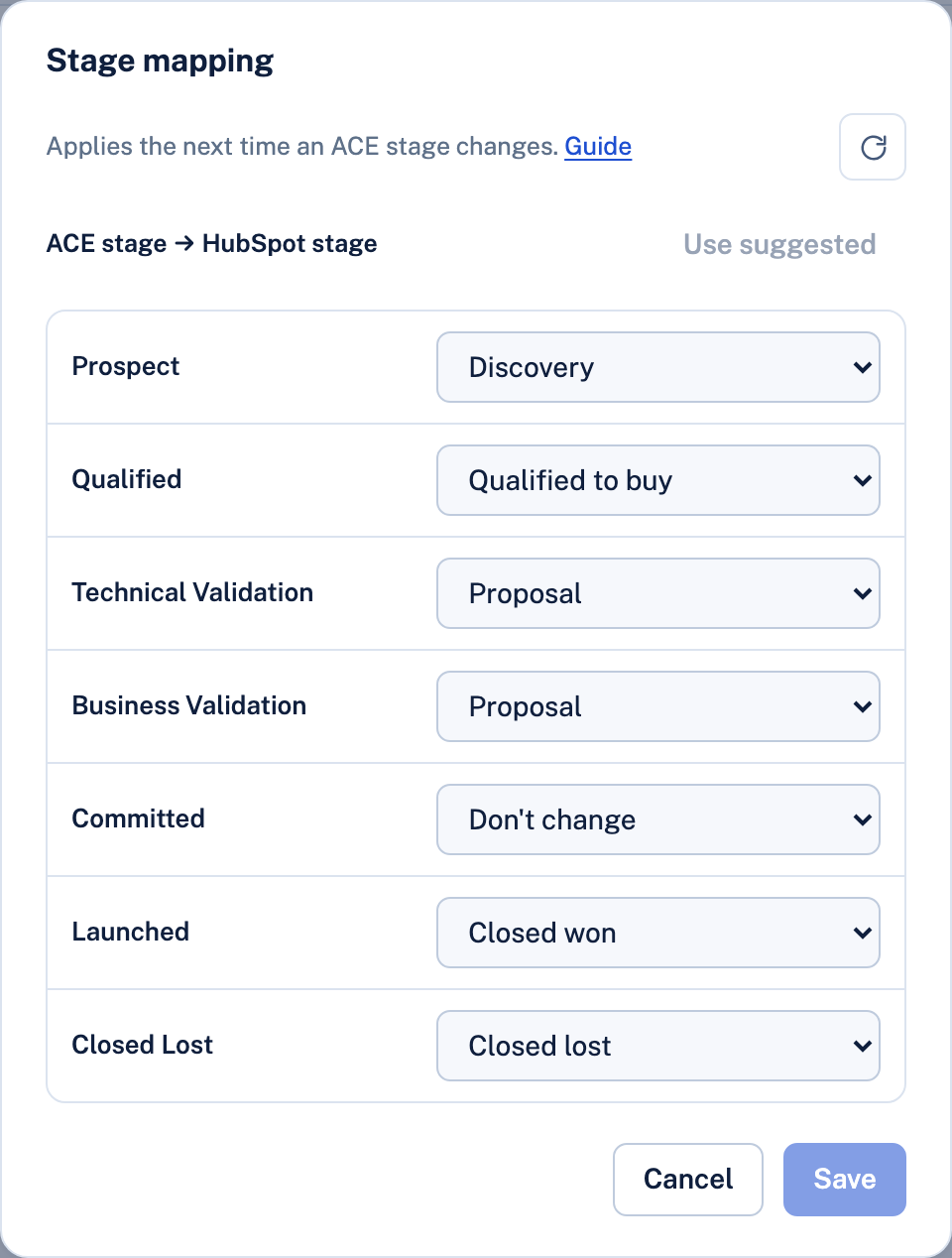
On HubSpot you set one mapping per pipeline. A deal only moves within its own pipeline.
When it applies:
- The mapping applies the next time an opportunity's ACE stage changes. Existing deals do not move when you save it.
- Fixing a mapping does not move deals your CRM refused earlier. They move on their next ACE stage change.
- If your CRM refuses a mapped stage, or the stage no longer exists, the row shows one line with Fix. Sync of the other fields continues.
- Reconnecting after Disconnect clears the stage mapping. Remove deletes it.
Deals
Deals (CRM) lists the deals from your CRM, with their stage, amount and AWS sync status.
- New deal adds a deal to your CRM. Pick an opportunity in Link to opportunity to link the two, or tick Export to Partner Central after creating to also create the opportunity.
- Select a deal to open its details. Edit changes it in your CRM. On an exported deal, tick Also update the Partner Central opportunity to send the change to AWS too. The stage of a linked deal Changes your CRM only. It is never sent to Partner Central.
- Export to Partner Central turns the deal into an opportunity.
- AWS fields shows the Partner Central columns. Hide AWS fields hides them.
- Sync status shows Exported, Not exported, Awaiting sync, Sync error or Differs from Partner Central.
- The list loads one page at a time. Choose Load more for the next page.
Linked deals
Sync only updates linked deals. A deal is linked when:
- you pushed the opportunity with Push to CRM,
- it was created in your CRM and exported to Partner Central,
- you created it with New deal and Link to opportunity, or
- it already holds the opportunity ID in its AWS Opportunity ID field. Sync picks it up by itself.
On a linked deal, sync updates:
- Always: the 10 AWS fields. AWS ACE Stage, AWS-Side Stage, Engagement Score, Opportunity Quality Score, Next Steps, AWS rep name and email, PDM name and email, and Review Status.
- Amount and Close date: only with the sync option on.
- Stage: only through a stage mapping.
- Never: the deal's name or owner.
If your CRM rejects an update, the deal's sync error shows your CRM's message. See Blocked sync.
Sync options
Your CRM owns Amount and Close date by default. Sync never overwrites them.
Turn on Let Partner Central update Amount and Close date to let Partner Central own them. An edit to either field on an exported deal then also goes to the opportunity, or the next sync would undo it. While the opportunity is Submitted or In review, the two fields cannot change.
Pull from Partner Central
Pull from Partner Central copies the opportunity's current values onto the deal: the AWS fields and, with the sync option above on, Amount and Close date. The stage changes only through a stage mapping. Other CRM fields are not changed.
Partner Central opportunities
Opportunities (ACE) lists your Partner Central opportunities with their stage, review status and co-sell motion.
- Search by ID, company or title, or pick a stage to filter the list.
- New opportunity creates one.
- Select one to View details, Edit, Advance stage or Submit to AWS.
- Partner-led opportunities go to AWS as For Visibility Only.
- For tenant admins with a CRM connected, the CRM column shows Linked to and the CRM, or ACE only. Filter with All, Linked or ACE only.
- Load more from Partner Central loads the next page.
Push to CRM
Opportunities from AWS, such as referrals, stay in Partner Central until you push them to your CRM. Tenant admins can push.
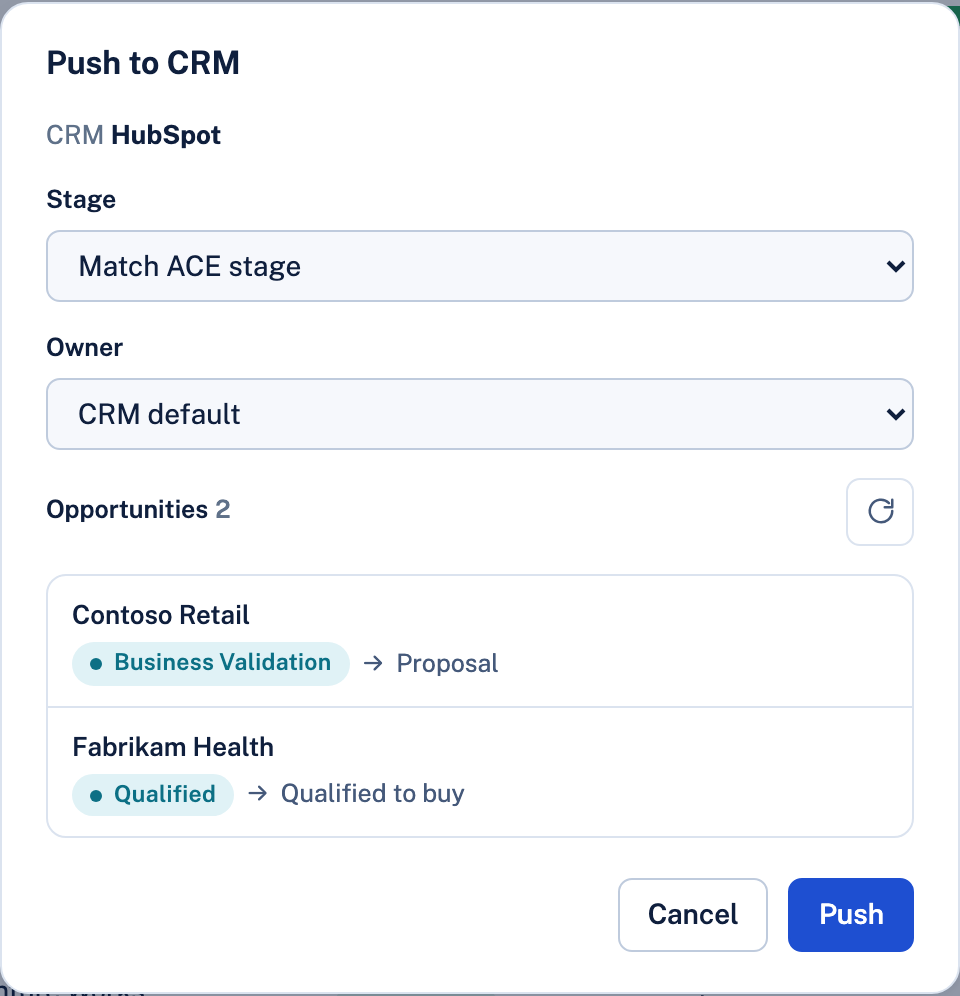
- Open an opportunity's details and choose Push to CRM. Or, in the list, tick up to 5 opportunities and choose Push to CRM (n).
- Review the dialog:
- CRM: when several CRMs sync this account.
- Stage: Match ACE stage uses your stage mapping, or the standard match. You can pick one of your CRM's own stages instead. HubSpot stages are grouped by pipeline.
- Owner: CRM default, or a user from your CRM. HubSpot shows Owners unavailable until the HubSpot connection has the owners permission.
- The opportunities, with the stage each one will get.
- Choose Push.
Each opportunity shows a result:
- Created: a new deal, linked to the opportunity.
- Existing deal kept: a deal already carried the opportunity ID. It is linked and left as it is.
- Already linked: nothing to do.
- Failed: with your CRM's message.
- Skipped: not sent.
Sync must be on for that CRM. Otherwise the app shows Turn on sync to push. Pushed deals are linked and sync keeps them up to date. You can still create a deal with New deal and Link to opportunity.
Associations
Link AWS products, solutions and Marketplace offers to an opportunity from its details, with Add association. Offers can be linked only once the opportunity is Launched.
The offer picker searches the offers already loaded. Press Enter to search all released offers by name, offer ID or 12-digit buyer account.
Submitting to AWS
After you submit, AWS reviews the opportunity. It shows In review until AWS finishes, and most fields are locked. If Partner Central rejects the submission, the app shows the field to fix.
Stage moves are forward-only
Advance stage moves an opportunity forward, never back. Launched is the last positive stage. When the next stage needs more fields, the edit dialog lists them under Required for Qualified. While an opportunity is Submitted or In review, its stage cannot change.